How to Run YouTube Ads: The Complete A-to-Z Guide for Beginners (Campaigns, Budgets, Targeting, Traffic and Sales)
Most articles about "YouTube marketing" online blur two completely different things together: making money FROM ads shown on your own videos (monetization) and paying to run ads TO promote a business, product, or channel (YouTube advertising). This guide is entirely about the second one - the complete, beginner-to-advanced process of actually running YouTube ads, starting from the very first account you need to open all the way through building, launching, and scaling a real campaign. By the end, you should be able to set up and launch a YouTube ad campaign without needing to search anywhere else.
This guide is part of a larger Digital Marketing Learning Center and connects naturally with: Blogger vs WordPress, Amazon Associates: Complete Guide to Affiliate Marketing, SEO for Beginners, Digital Marketing Explained, Content Marketing Complete Guide, Email Marketing Explained, Social Media Marketing Explained, Facebook Marketing Explained, Instagram Marketing Explained, Pinterest Marketing Explained, and LinkedIn Marketing Explained.
1. What Are YouTube Ads, Exactly?
YouTube ads are paid video, image, or banner advertisements that run on YouTube, purchased and managed through Google Ads. Unlike posting a regular video to your own channel, a YouTube ad is something you pay to show to people who haven't necessarily subscribed to you or searched for your content - it's a paid distribution channel layered on top of YouTube's massive audience, built to drive awareness, traffic, leads, or direct sales on your own schedule.
2. YouTube Ads vs YouTube Monetization: The Confusion That Trips Up Every Beginner
This is the single most important distinction in this entire guide, and almost no beginner-level article makes it clear. YouTube monetization (the YouTube Partner Program and AdSense) is about a creator earning money when ads are shown on their own videos. YouTube ads, the subject of this guide, are the opposite direction entirely: you are the one paying, using Google Ads, to show your video or business to other people watching YouTube. These are two completely separate systems, run through different dashboards, with different rules, and confusing them is why so many beginners get stuck before they even start.
3. Do You Need a YouTube Channel to Run YouTube Ads?
Yes, in almost every case - your ad creative needs to be uploaded as a video, and videos must live on a YouTube channel before Google Ads can pull them into a campaign. The channel doesn't need history, subscribers, or prior public videos; it's completely fine to upload your ad video as "unlisted" so it plays only inside your ad and never appears on your public channel page at all.
4. Do You Need a Monetized Channel to Run YouTube Ads?
No - and this is worth repeating clearly because it's one of the most common points of confusion. Monetization status has zero bearing on your ability to run ads. A channel with zero subscribers, zero watch hours, and no monetization approval can still launch a fully functioning ad campaign today, because running ads is a Google Ads function, not a YouTube Partner Program function. The two systems simply don't check each other.
5. Everything You Need Before You Start: The Full Checklist
| Requirement | Details |
|---|---|
| A Google account | Used to log into both YouTube and Google Ads |
| A YouTube channel | To host your ad video, even if set to unlisted |
| A finished video ad | Uploaded to YouTube before building the campaign |
| A Google Ads account | The actual dashboard used to build and launch campaigns |
| A valid payment method | Card, bank details, or other accepted method depending on your country |
| A clear campaign goal | Awareness, traffic, leads, or sales - decided before you start building |
| A landing page or destination | Where clicks should go, ideally with conversion tracking installed |
6. Creating Your Google Ads Account Step by Step
Go to ads.google.com and sign in with the same Google account tied to your YouTube channel. Choose to create a new campaign or, if you'd rather set up billing and settings first, switch to Expert Mode from the setup wizard, which skips the guided flow and drops you directly into the full dashboard. From there, Google will ask for your business name, country, time zone, and currency - the currency and time zone you select here cannot be changed later without creating a new account, so choose carefully.
7. Linking Your YouTube Channel to Google Ads
Inside Google Ads, navigate to Tools and Settings, then Linked Accounts, and select YouTube. From there you can either link a channel you own directly, or request access to a channel owned by someone else (useful for agencies managing a client's ads). Once linked, that channel's uploaded videos become available to select directly when building a video campaign.
8. Setting Up Billing: Where This Happens
Billing lives under Tools and Settings, then Billing, inside your Google Ads account. You'll be asked to choose a billing country, confirm your business or individual tax details where applicable, and then add a payment method. No campaign can go live until this step is completed, since Google Ads requires an active payment method on file before it will spend a single cent on your behalf.
9. Accepted Payment Methods for YouTube Ads
| Payment Method | Notes |
|---|---|
| Credit or debit card | The most widely available option across almost every country |
| PayPal | Available in select countries as an alternative to a card |
| Bank account (direct debit) | Common in countries where automatic bank payments are supported |
| Manual bank transfer | Available in some regions, typically requiring pre-payment before ads run |
Exactly which options appear depends on your billing country, since Google Ads enables different payment methods region by region. It's worth checking the current options directly inside your account's billing settings, since availability does shift over time.
10. Automatic Payments vs Manual Payments Explained
With automatic payments, the most common setup, you're charged after your ads have already run - either when you hit a set billing threshold or on a monthly cycle, whichever comes first. With manual payments, available in some countries, you add funds to your account in advance, and your ads only run as long as that prepaid balance lasts. Automatic payments are simpler for most beginners, while manual payments give tighter, upfront spending control.
11. Where to Go to Actually Create a Campaign
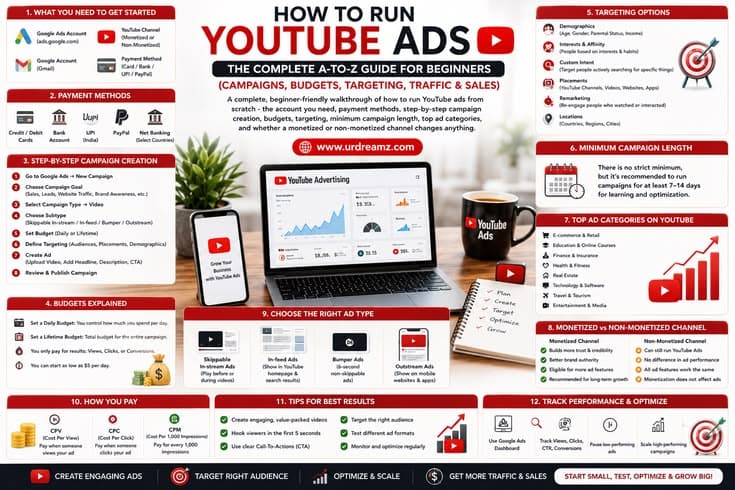
From the main Google Ads dashboard, click the blue "New Campaign" button, usually found in the left-hand navigation or the top of the Campaigns tab. This single button is the starting point for the entire ten-step process covered in the sections below.
12. Step 1: Choosing Your Campaign Goal
Google Ads will first ask you to pick an overall objective: Sales, Leads, Website Traffic, Product and Brand Consideration, Brand Awareness and Reach, App Promotion, or Create a Campaign Without a Goal's Guidance. This choice shapes which bidding strategies and settings Google recommends later in the setup, so pick the option that most honestly matches what you actually want the campaign to achieve.
13. Step 2: Selecting the Video Campaign Type
After choosing a goal, select "Video" as the campaign type. This tells Google Ads you want to run video ads specifically on YouTube and across Google's video partner network, rather than search, display, or shopping ads.
14. Step 3: Choosing a Campaign Subtype
Video campaigns break down into several subtypes, each suited to a different goal and viewing experience. Understanding the differences here is one of the most important decisions in the entire setup process, since the wrong format for your goal can quietly waste budget.
15. Skippable In-Stream Ads Explained
These play before, during, or after another video, and viewers can skip after five seconds. You're typically only charged when someone watches at least thirty seconds (or the full ad if it's shorter) or interacts with it - which makes this a cost-efficient default choice for most beginners, since disinterested viewers who skip early cost you nothing.
16. Non-Skippable In-Stream Ads Explained
These must be watched in full before the main video continues, typically limited to around 15 seconds. Because viewers can't skip, this format is generally billed by impressions rather than views, and it's best suited for pure brand awareness rather than direct response goals.
17. In-Feed Video Ads Explained
These appear as a thumbnail and text snippet within YouTube search results, the homepage feed, or as a suggested video next to other content. You're only charged when someone actively chooses to click and watch, which makes this format naturally suited to curious, higher-intent viewers.
18. Bumper Ads Explained
Bumper ads are short, non-skippable ads capped at six seconds, designed for quick, memorable brand messages rather than detailed pitches. They're typically billed on a cost-per-thousand-impressions basis and work best as a supporting format layered alongside a longer skippable ad campaign.
19. YouTube Shorts Ads Explained
These are vertical, full-screen ads that appear between Shorts in the Shorts feed, matching the native look and feel of organic Shorts content. Given how much time viewers now spend in the Shorts feed specifically, this format has become an increasingly important placement to include rather than treat as optional.
20. Outstream and Masthead Ads Explained
Outstream ads run on partner websites and apps outside of YouTube itself, expanding reach beyond the platform. Masthead ads are premium, reserved placements shown at the very top of the YouTube homepage, typically booked in advance and priced at a larger scale - generally out of reach for a small first-time budget, but worth knowing exists as your advertising matures.
21. Step 4: Setting Your Budget and Bidding Strategy
Next, set either a daily budget or a total campaign budget, and choose how Google Ads should bid on your behalf to get results. Your daily budget is a target average, not a hard daily ceiling - Google may spend somewhat more on a strong day and less on a slower one, balancing out to your set amount over the course of a month.
22. Understanding Bidding Strategies
| Bidding Strategy | Best For |
|---|---|
| Maximum CPV (cost-per-view) | Manual control over how much you'll pay per view or interaction |
| Target CPM (cost-per-thousand-impressions) | Awareness campaigns focused on reach rather than clicks |
| Target CPA (cost-per-acquisition) | Conversion-focused campaigns once you have some conversion data |
| Maximize Conversions | Automated bidding that spends your budget to get as many conversions as possible |
23. Step 5: Setting Campaign Dates and Duration
You can start a campaign immediately or schedule a future start date, and you can either leave the end date open-ended or set a fixed stop date. For a first campaign, setting a defined end date - even a generous one - gives you a natural checkpoint to review performance rather than letting an untested campaign run indefinitely.
24. Minimum Number of Days You Should Run a Campaign
Google Ads doesn't enforce an official minimum campaign length, but automated bidding strategies need time and data to exit their initial "learning phase" and start optimizing properly. As a practical guideline, most experienced advertisers recommend running a new campaign for at least seven to fourteen days before making major changes or judging results, since shorter windows rarely provide enough data for a fair read on performance.
25. Step 6: Setting Up Audience Targeting
This is where you define exactly who should see your ad. Google Ads offers several targeting layers that can be combined together, and understanding each one is what separates a campaign that reaches genuinely interested viewers from one that burns budget on an irrelevant audience.
26. Demographic Targeting Explained
Target by age range, gender, parental status, or household income where available. This is the broadest layer of targeting and works best combined with at least one other, more specific targeting method below.
27. Interest and Affinity Targeting Explained
Reach people based on their long-term interests and habits - for example, "cooking enthusiasts" or "technology early adopters." This targets lifestyle-level interest rather than active shopping behavior, making it well suited to broader awareness goals.
28. Custom Intent and In-Market Audiences Explained
In-market audiences target people actively researching or comparing products in a specific category right now, while custom intent audiences let you build a bespoke audience based on specific search terms or URLs you define yourself. These tend to reach viewers much closer to an actual buying decision than broad interest targeting alone.
29. Remarketing Audiences Explained
Remarketing shows ads specifically to people who already visited your website, watched your videos, or engaged with your channel before. This is consistently one of the highest-converting targeting options available, since you're reaching people who have already shown real interest rather than introducing your brand cold.
30. Keyword and Topic Targeting Explained
Keyword targeting shows your ad alongside videos or searches matching specific terms, while topic targeting shows your ad across a broader content category, such as "Beauty and Fitness" or "Home and Garden." Keywords give tighter control; topics give broader reach with less manual upkeep.
31. Placement Targeting Explained
Placement targeting lets you hand-pick specific channels, videos, apps, or websites where your ad should appear. This is especially useful once you've identified which channels in your niche consistently attract your exact target audience.
32. Step 7: Choosing Where Your Ads Appear
Beyond audience targeting, you can choose whether your ads run across YouTube search results, YouTube videos, YouTube Shorts, and Google video partner sites, or restrict delivery to a narrower subset of these. Starting broad across all placements, then narrowing based on which ones actually perform, is generally a more data-driven approach than guessing upfront.
33. Step 8: Uploading and Preparing Your Video Creative
Your video must already be uploaded to your linked YouTube channel before you can select it inside the campaign builder - Google Ads pulls directly from your channel's video library rather than accepting a raw file upload within the ads interface itself. Search for the video by title or paste its YouTube URL directly into the ad creation screen.
34. Video Length and Format Best Practices
| Ad Format | Typical Length |
|---|---|
| Skippable in-stream | Often 15 seconds to 3 minutes, with the first 5 seconds critical before viewers can skip |
| Non-skippable in-stream | Around 15 seconds |
| Bumper | 6 seconds maximum |
| In-feed | No strict limit, since viewers actively choose to click and watch |
| Shorts ads | Vertical format, typically under 60 seconds to match native Shorts |
35. Step 9: Writing Your Headline, Description and Call to Action
Beyond the video itself, most video ad formats let you add a headline, a short description, a display URL, and a call-to-action button overlay. Keep the headline benefit-focused and specific, and make sure the call-to-action text matches exactly what happens when someone clicks - mismatched expectations here are a common, avoidable source of wasted clicks.
36. Step 10: Reviewing and Launching Your Campaign
Before publishing, Google Ads shows a summary of your entire setup - goal, budget, targeting, placements, and creative - for a final check. Review every section carefully, since campaign settings can be edited later but catching an obvious mistake before launch saves both time and wasted spend.
37. What Happens During Ad Review
After launch, your ad enters a review process, typically completed within one business day, though some ads may take longer. During this period, your ad's status will show as "Under review," and it won't yet be serving impressions. Once approved, status changes to "Eligible" and delivery begins.
38. What to Check in Your First Week
In the first seven days, focus on view rate (for skippable ads), click-through rate, and whether your budget is actually being spent at the pace you set. Resist the urge to make major changes daily - early fluctuation is normal while the algorithm calibrates, and constant tinkering can reset that calibration process repeatedly.
39. Campaign Objectives: Awareness vs Consideration vs Conversion
Awareness campaigns aim to get your brand seen by as many relevant people as possible, typically measured by reach and impressions. Consideration campaigns aim to get people actively engaging - watching longer, clicking through, visiting your channel. Conversion campaigns aim for a specific action, like a purchase or sign-up, and are usually the most expensive per result but the most directly tied to revenue.
40. Setting Up a Campaign for Website Traffic
For a traffic-focused goal, choose the Website Traffic campaign objective, use a clear call-to-action overlay linking directly to your landing page, and favor skippable in-stream or in-feed formats, since both reward genuine viewer interest rather than forcing an impression on an uninterested viewer.
41. Setting Up a Campaign for Sales and Conversions
For sales specifically, choose the Sales objective, install conversion tracking before launch (covered next), and consider a Target CPA or Maximize Conversions bidding strategy once you have enough historical data for the system to optimize against. Remarketing audiences tend to perform particularly well for this specific goal, since they reach people already familiar with your offer.
42. Setting Up Conversion Tracking
Conversion tracking is set up under Tools and Settings, then Conversions, where you define what counts as a conversion - a purchase, a form submission, a sign-up - and install a small tracking tag on your website (or connect through a tag manager). Without this step, Google Ads has no way to optimize toward actual sales, which makes this one of the most important, and most frequently skipped, setup steps for any beginner focused on revenue rather than pure views.
43. Minimum Ad Spend: How Much Money You Actually Need
There is no official minimum account balance required to open a Google Ads account or launch a campaign - you can technically start with a very small daily budget. In practice, though, extremely low budgets (a few dollars a day) rarely generate enough data for the algorithm to optimize meaningfully, so most practical guidance suggests starting with at least a modest daily budget you're comfortable testing for one to two full weeks.
44. Typical Cost Ranges for YouTube Ads
Cost per view for skippable in-stream ads commonly falls in a low single-digit range in many markets, though this varies significantly by country, competition, audience targeting, and time of year. Rather than anchoring to any single published number, treat early published cost estimates as a rough starting expectation, and rely on your own campaign's real, current cost-per-result data as the true benchmark once your campaign has run for a week or two.
45. Maximum Ad Spend: Is There a Limit?
There is no platform-imposed maximum - large brands routinely spend enormous daily budgets on YouTube. The only real ceiling is the budget you personally set at the campaign or account level, along with your own payment method's available funds or credit limit.
46. Recommended Starter Budgets by Goal
| Goal | Suggested Starting Approach |
|---|---|
| Brand awareness | A modest daily budget spread across a broader audience for maximum reach |
| Website traffic | A slightly higher daily budget focused on a narrower, more relevant audience |
| Lead generation | A moderate budget paired with a strong landing page and clear offer |
| Direct sales | A budget large enough to sustain at least one to two weeks of testing once conversion tracking is confirmed working |
47. How Long to Run a Campaign Before Judging Results
Beyond the minimum learning window covered earlier, a fair evaluation typically needs enough volume to draw a real conclusion - not just enough days. As a general rule of thumb, wait until a campaign has accumulated a meaningful number of clicks or conversions, not just elapsed days, before deciding whether it's genuinely working or needs a real strategic change rather than a premature pause.
48. Top Industries and Categories That Run YouTube Ads
| Category | Why It Performs Well on YouTube |
|---|---|
| Ecommerce and retail | Visual product demonstrations translate naturally into video |
| Mobile apps and software | Screen-recorded demos build trust before download |
| Education and online courses | Long-form explanation suits YouTube's format well |
| Automotive | High-production video showcases vehicles effectively |
| Beauty and personal care | Tutorial-style content pairs naturally with product promotion |
| Finance and fintech | Explainer-style ads build trust for complex products |
| Travel and hospitality | Destination and experience visuals drive strong engagement |
49. Running Ads on a Monetized Channel
If your channel is already monetized through the YouTube Partner Program, running paid ads has no negative effect on your monetization status, and the two revenue streams simply run in parallel - you can earn AdSense revenue from organic views while separately paying to run promotional ads. Some advertisers running ads toward their own monetized videos will even see a portion of that ad spend effectively returned as AdSense earnings on the resulting views, though this shouldn't be relied upon as a primary strategy.
50. Running Ads on a Non-Monetized Channel
A non-monetized channel can run YouTube ads exactly the same way as a monetized one - there is no eligibility check tying campaign creation to Partner Program status. This makes YouTube ads a genuinely accessible starting point for brand-new channels or businesses that haven't yet reached monetization thresholds but still want to reach an audience today.
51. Common Beginner Mistakes to Avoid
- Confusing monetization requirements with advertising requirements, and delaying ads unnecessarily as a result
- Skipping conversion tracking setup, then having no real way to judge sales performance
- Judging results after only a day or two instead of a full one-to-two week window
- Targeting too narrowly on a brand-new campaign, starving the algorithm of enough data to optimize
- Uploading a video creative not designed for the first five seconds, losing viewers before the message lands
- Making frequent, reactive changes that repeatedly reset the campaign's learning phase
52. YouTube Ads Policy Basics
All ads must comply with Google Ads policies covering prohibited content, restricted categories (such as alcohol, gambling, and healthcare claims in certain regions), and general advertising standards around misleading claims. Reviewing the current Google Ads policy center before launching a campaign in a sensitive category can prevent an unexpected disapproval after you've already invested time building the campaign.
53. How to Scale a Campaign That's Working
Once a campaign shows a genuinely healthy cost-per-result over a fair testing window, scale gradually rather than dramatically - increasing budget by a moderate percentage every few days tends to preserve performance better than doubling spend overnight, which can disrupt the bidding algorithm's existing optimization.
54. Tools That Help Manage YouTube Ads
Beyond Google Ads itself, Google Analytics helps track what happens after the click, a dedicated landing page builder ensures the destination matches the ad's promise, and a simple spreadsheet or dashboard tracking weekly cost-per-result over time helps spot trends that a single day's numbers would never reveal.
55. Complete Pre-Launch Checklist
| Checklist Item | Why It Matters |
|---|---|
| Google Ads account created and billing added | No campaign can launch without an active payment method |
| YouTube channel linked | Required to select your ad video during campaign creation |
| Video uploaded (even if unlisted) | The campaign builder pulls directly from your channel |
| Clear campaign goal chosen | Shapes every subsequent setting in the campaign |
| Conversion tracking installed (for sales goals) | Without it, optimization toward sales is impossible |
| Budget and duration set | Gives the campaign a fair, defined testing window |
| Targeting reviewed, not too narrow | Ensures enough data for the algorithm to optimize properly |
56. 30-Day Beginner Roadmap
| Week | Focus |
|---|---|
| Week 1 | Set up Google Ads, link your channel, upload your video creative, and launch your first small-budget campaign |
| Week 2 | Monitor daily spend and basic engagement without making major changes; confirm conversion tracking is firing correctly |
| Week 3 | Review the first fair set of results, adjust targeting or creative based on real data rather than assumptions |
| Week 4 | Scale the budget gradually on whichever ad group or audience is performing best, and pause or rework anything clearly underperforming |
57. Frequently Asked Questions
Do I need a monetized YouTube channel to run YouTube ads?
No. Monetization and advertising are entirely separate systems - any channel, monetized or not, can run YouTube ads through Google Ads.
What account do I need to run YouTube ads?
You need a Google account, a YouTube channel to host your video, and a Google Ads account with a valid payment method added.
How much money do I need to start running YouTube ads?
There's no official minimum, but a small daily budget sustained for one to two weeks is generally needed to gather enough data for a fair evaluation.
Is there a maximum amount I can spend on YouTube ads?
No platform-imposed maximum exists - your budget settings and payment method are the only real limits.
How many days should I run a YouTube ad campaign before judging results?
At least seven to fourteen days is a common practical guideline, giving automated bidding enough time to exit its early learning phase.
What is the difference between skippable and non-skippable ads?
Skippable ads let viewers skip after five seconds and are typically billed only when watched or engaged with; non-skippable ads must be watched in full and are usually billed by impressions.
Can a brand-new channel with no videos run YouTube ads?
Yes, as long as at least one video - even unlisted - is uploaded to serve as the ad creative itself.
What industries perform best with YouTube ads?
Ecommerce, apps, education, automotive, beauty, finance, and travel all tend to perform particularly well, largely because their offerings translate naturally into visual, video-based storytelling.
58. Conclusion
Running YouTube ads is far more accessible than most beginners assume - it requires no channel history, no monetization approval, and no large starting budget, just a Google Ads account, a linked YouTube channel, a video creative, and a clear goal. Follow the ten-step campaign setup covered above, give your first campaign a fair one-to-two week testing window, and use real performance data rather than assumptions to guide every adjustment from there. That process, repeated and refined, is genuinely the entire game.